React Native AMA 2.0: Live Accessibility Feedback as You Code
How often do you check accessibility while developing a React Native app?
Spoiler alert: probably not often enough.
When I created React Native AMA (Accessible Mobile App), my goal was simple: “Help developers understand accessibility.” With this in mind, the library had two main focuses:
1. Runtime checks
Runtime checks were used to analyse the properties passed to a component and to catch accessibility issues while we wrote code.
And if something went wrong, AMA would highlight the offending component
2. Documentation and Checklist
AMA was always meant to help you understand why some component failed an accessibility check. That’s why each error pointed you to a documentation page about the issue and how to fix it.
And this worked well, but with a few caveats
The limitations of v1
When I built the first version of AMA, using JavaScript wrapper components made total sense to me.
Wanted an accessibility check on a button or text? You just had to import it from @react-native-ama/react-native instead of react-native:
// The "old" way in AMA v1
import { Pressable, Text } from '@react-native-ama/react-native';
What’s wrong with that? If you were starting a brand-new project from scratch or building your own Design System, it worked great.
But in the real world, we almost always work on existing codebases, often with hundreds of screens or third-party UI libraries already in place.
Replacing every single <Pressable>, <TouchableOpacity>, or <Text> across hundreds of files just to get runtime accessibility checks created way too much friction.
YOU: Wait, so to know if my app is accessible I have to refactor 300 files first?
ME: Exactly. Not the best way to encourage adoption, is it?
That sounds a bit crazy and time-consuming, doesn’t it?
Then years later I had a dream: Can we have a zero-friction approach? Something that works out of the box with the code you already have?
AMA 2.0: Going Native
In React Native AMA 2.0, I experimented with collecting UI info from the native side and feed into to JavaScript to evaluate issues.
Why native? Because instead of forcing you to use my custom wrapper components, AMA 2.0 inspects your app’s actual native view hierarchy while it runs!
-
👎 Before (v1): You had to import components from
@react-native-ama/react-nativeto trigger runtime checks. -
👎 Before (v1): It couldn’t inspect internal components coming from third-party UI libraries.
-
👍 Today (v2): It works with standard React Native components, including those provided by third-party UI libraries.
-
👍 Today (v2): You just wrap your app in
<AMAProvider>and the whole screen is audited automatically. -
👍 Today (v2): 100% Standalone Packages: Every package now works independently. Just install what you need :)
Cool, isn’t it?
How it works
To get started with AMA 2.0, we only need to install the core package:
yarn add @react-native-ama/core
# or
npm install @react-native-ama/core
Then, we wrap the root of our app with <AMAProvider>:
import { AMAProvider } from '@react-native-ama/core';

export const App = () => {
  return (
    <AMAProvider>
      <YourApp/>
    </AMAProvider>
  );
};
That’s it. You don’t have to touch a single other file in your codebase.
As soon as you run your app in development mode (__DEV__), AMA starts scanning your UI in real time:
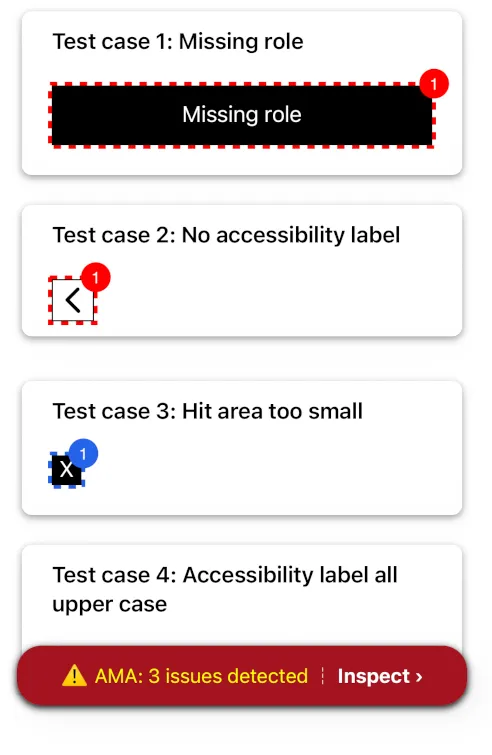
As soon as you run your app in development mode, AMA scans your UI and highlights any accessibility issues it finds.
But finding an issue is only half the job.
Tap on a highlighted component, and AMA explains what’s wrong, why it matters, and how to fix it. You can also follow the Learn more link to read the relevant accessibility guidelines.
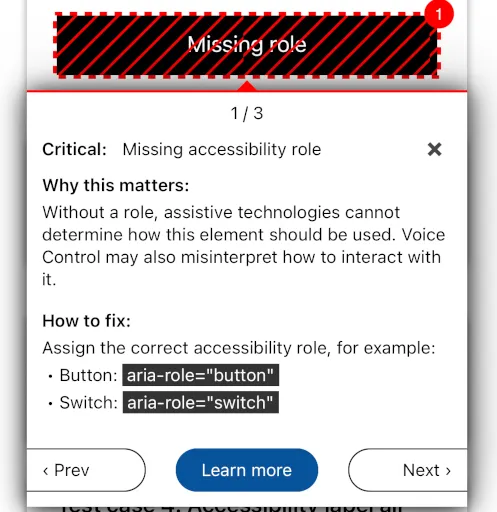
As you fix your code, AMA re-checks the UI and clears errors in real time.
And what about production builds? All the accessibility checks are stripped out automatically.
What can AMA 2.0 actually detect?
Moving to the native layer lets me inspect what the user actually sees on screen. I can measure components, check colours, and more.
- Pressable elements: Checks for missing
aria-roleoraria-label, low contrast ratios, all-caps text without a proper label, and tap targets that are too small. - Text elements: Checks real contrast ratios against the background, all-caps usage, and warns you if a screen has no element marked with
aria-role="heading". - UI Interactions: This is one of my favorites. If an interactive element changes state after a tap, AMA checks if the corresponding ARIA state (
aria-checked,aria-expanded,aria-selected,aria-disabled,aria-busy) was updated too! - Forms: Checks that every form field has a visible label, avoids duplicate accessible names, handles the keyboard return key, and doesn’t trap the user’s keyboard focus.
Let’s look at a quick example:
// 👎 Fails in AMA 2.0: the native scanner flags missing aria-role!
<Pressable onPress="{handlePress}">
  <Text>Save</Text>
</Pressable>

// 👍 Works: AMA clears the error in real-time as soon as you add the standard prop
<Pressable aria-role="button" onPress="{handlePress}">
  <Text>Save</Text>
</Pressable>
Three DX Gotchas to keep in mind
Before you jump in and try 2.0, here are three practical things to know so you don’t waste time debugging.
1. Expo Go is not supported (Use a Dev Build) Since AMA 2.0 ships a native Swift and Kotlin module, it cannot run inside the pre-built Expo Go sandbox. This can be annoying at first, but don’t worry: you just need to use an Expo Development Build instead:
npx expo install expo-dev-client
npx expo run:ios # or npx expo run:android
2. The React Native LogBox paradox
Because my native scanner inspects everything rendered on screen… it also inspects React Native’s own LogBox (the yellow/red warning overlay).
And guess what? LogBox isn’t built to AMA’s accessibility standards, so AMA will flag accessibility errors on LogBox itself!
If that gets in your way while developing, you can silence it with LogBox.ignoreAllLogs().
3. No guarantee your app will be fully accessible React Native AMA alone, like any other tool, can’t guarantee that the app is fully accessible. Automated checks can only detect certain types of accessibility issues. Although I’ve tried to cover as much as possible, manual testing with VoiceOver and TalkBack is still a must!
Check out the repo on GitHub, give 2.0 a spin on your app, and let me know how many issues it catches on your first screen 🙂!